11 Nov 2026
You can change the date, time and number of attendees on an upcoming booking yourself. Credits are refunded or charged automatically to match the new booking, and some edits need the space to approve them again.
How to edit a booking
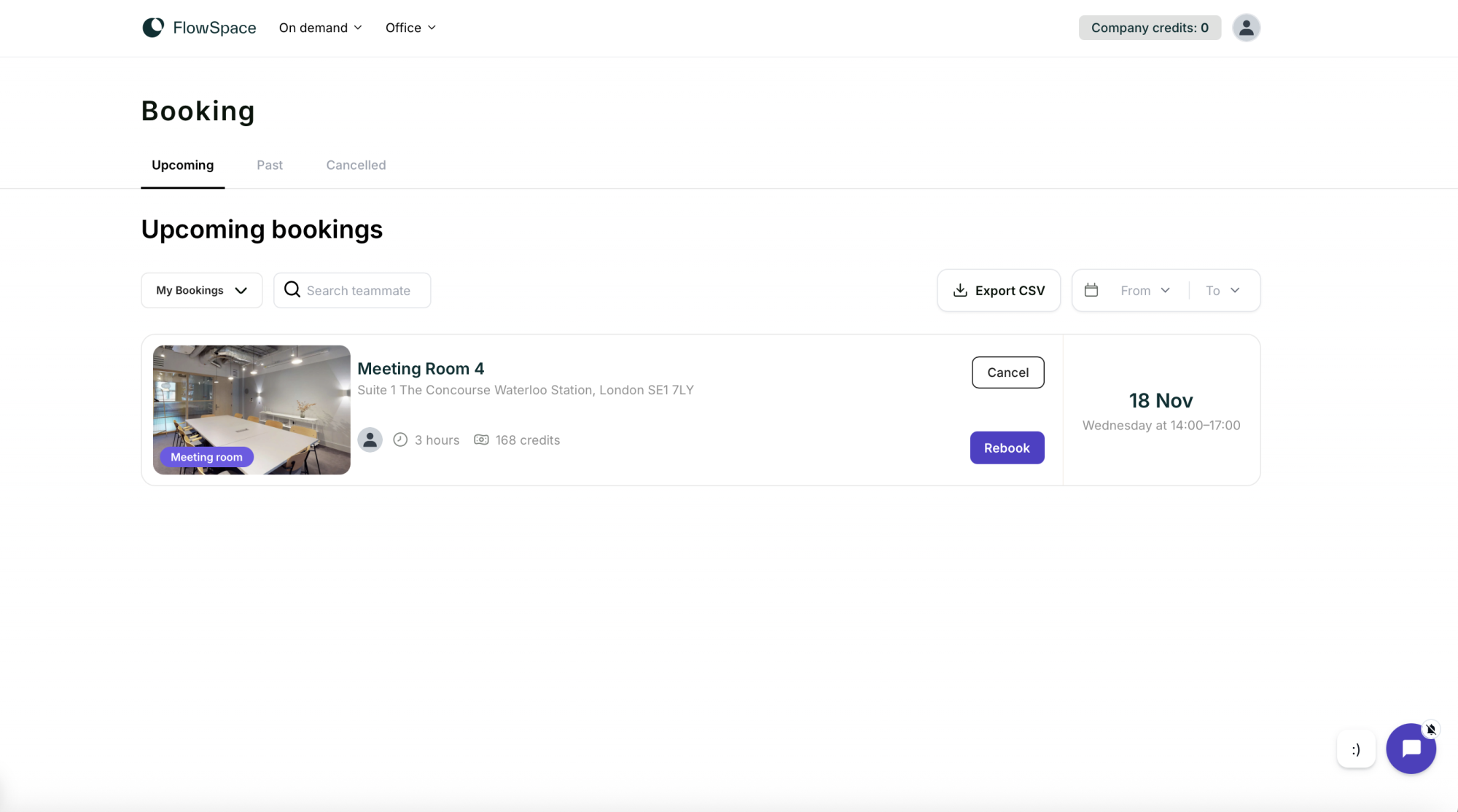
- Log in and go to Booking, then the Upcoming tab.
- Click the booking you want to change.
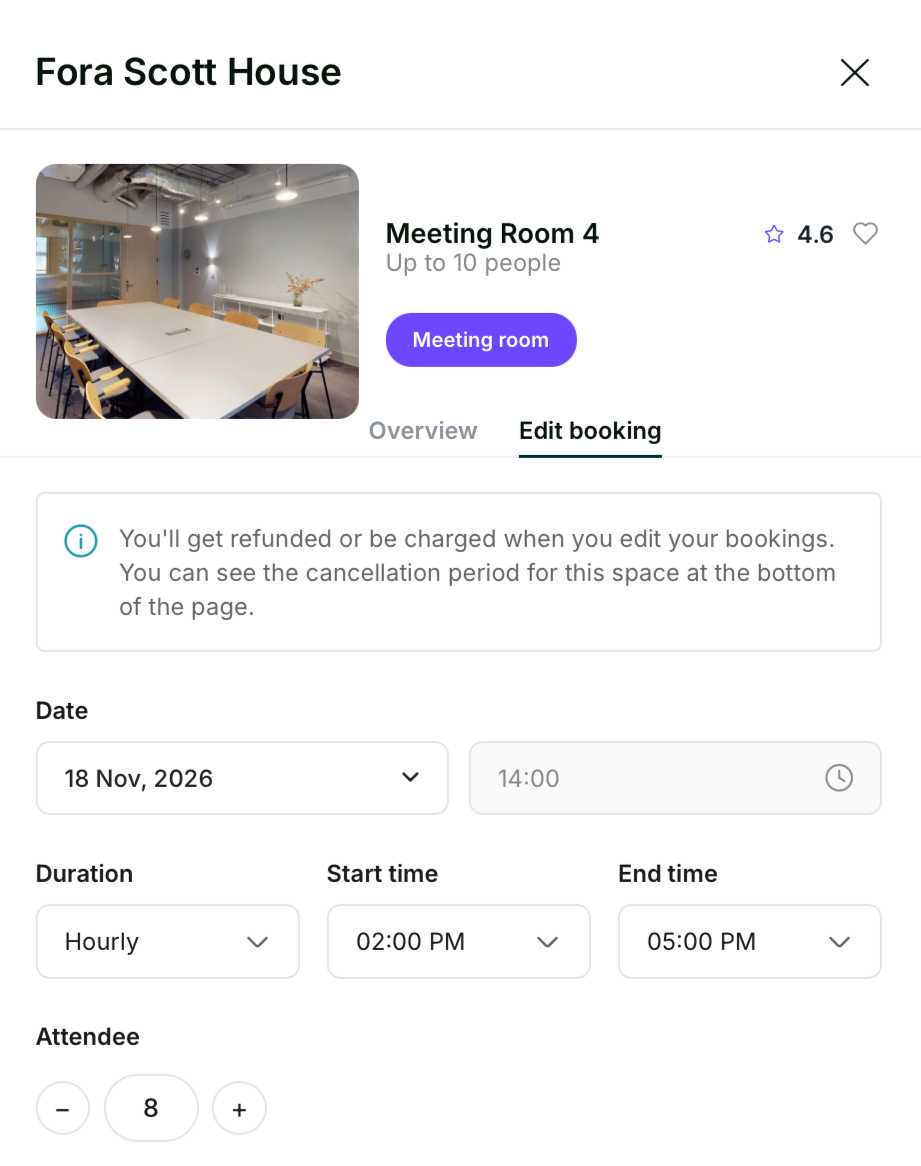
- Open the Edit booking tab.
- Change the date, start and end time, or number of attendees.
- Click Update Booking.
What happens after you edit
Booking type | After you edit | Credits |
|---|---|---|
Meeting rooms | Goes back to the space to approve as a new booking | Adjusted to the new booking or customer is asked for additional payment. A smaller booking means the credits are refunded to your account. |
Day offices | The space must accept the new booking, as it depends on their availability for that team size | Charged or refunded for the change in attendees |
Desks | Updated straight away | Charged or refunded for the change in attendees |
While a meeting room or day office edit is waiting for approval, the space may decline it or offer a different room. If you're making a small change close to the date, contact us first.
Cancellation windows and refunds
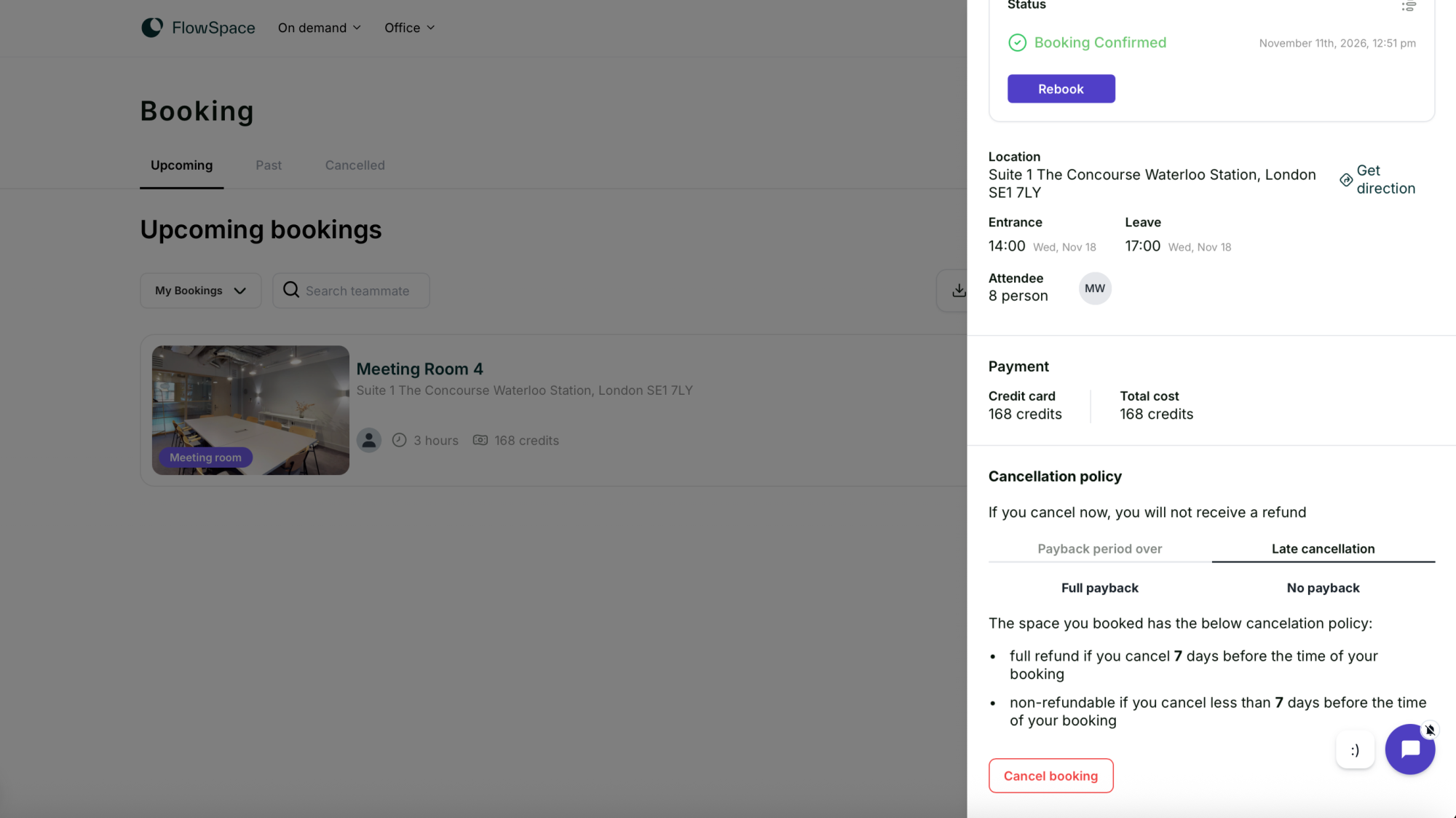
Each space sets its own cancellation window. To check it, open the booking and scroll to Cancellation policy.
- Payback period: cancel or reduce your booking before this and you get your credits back.
- Late cancellation: after this point, cancelling or reducing gives no refund.
For example, a space with a 7-day window refunds in full up to 7 days before the booking, and nothing after that.
Need help with a change? Call us on 0333 880 9885 or email heretohelp@flowspace.co.