11 Nov 2026
There are two ways to add teammates to your company account: invite them by email from an admin account, or share your company code so they can join when they sign up. Both start from Manage company, found in the profile menu (top right) once you're logged in.
Option 1: Invite from your admin account
Best when you know your teammate's work email. You need to be a Company Admin.
- Log in and open Manage company from the profile menu (top right).
- Go to the Manage team tab.
- Click + Add teammate (top right).
- Enter your teammate's email address and click Send invitation mail.
- Your teammate opens the email and accepts the invite.
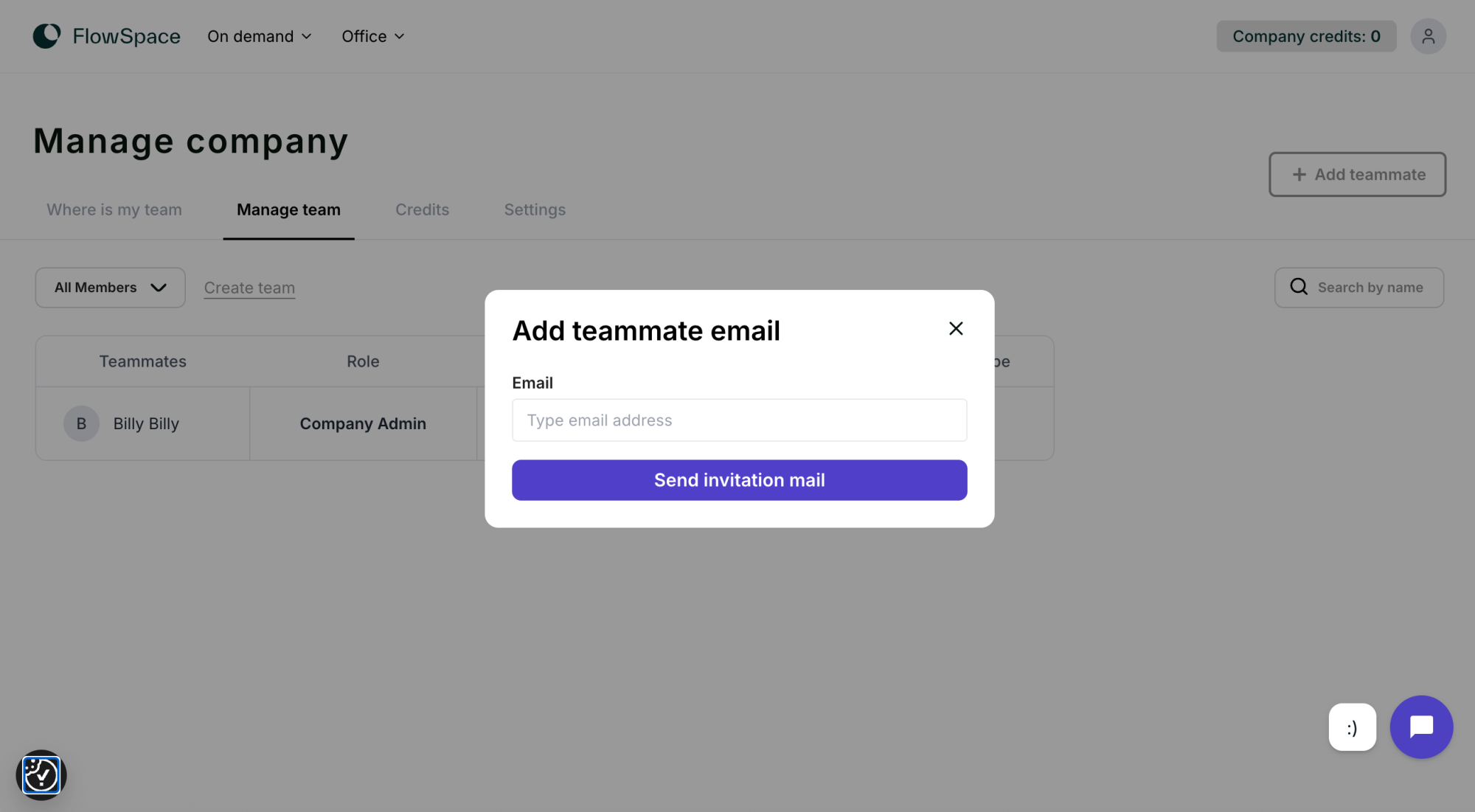
Once they accept, they appear in your Manage team list and can book using your company account.
Option 2: Share your company code
Best when a teammate missed the invite email, or is signing up on their own.
- Log in and open Manage company from the profile menu (top right).
- Go to the Settings tab.
- Copy your Company code (click the copy icon next to it).
- Send the code to your teammate.
- Your teammate enters the code when they sign up.
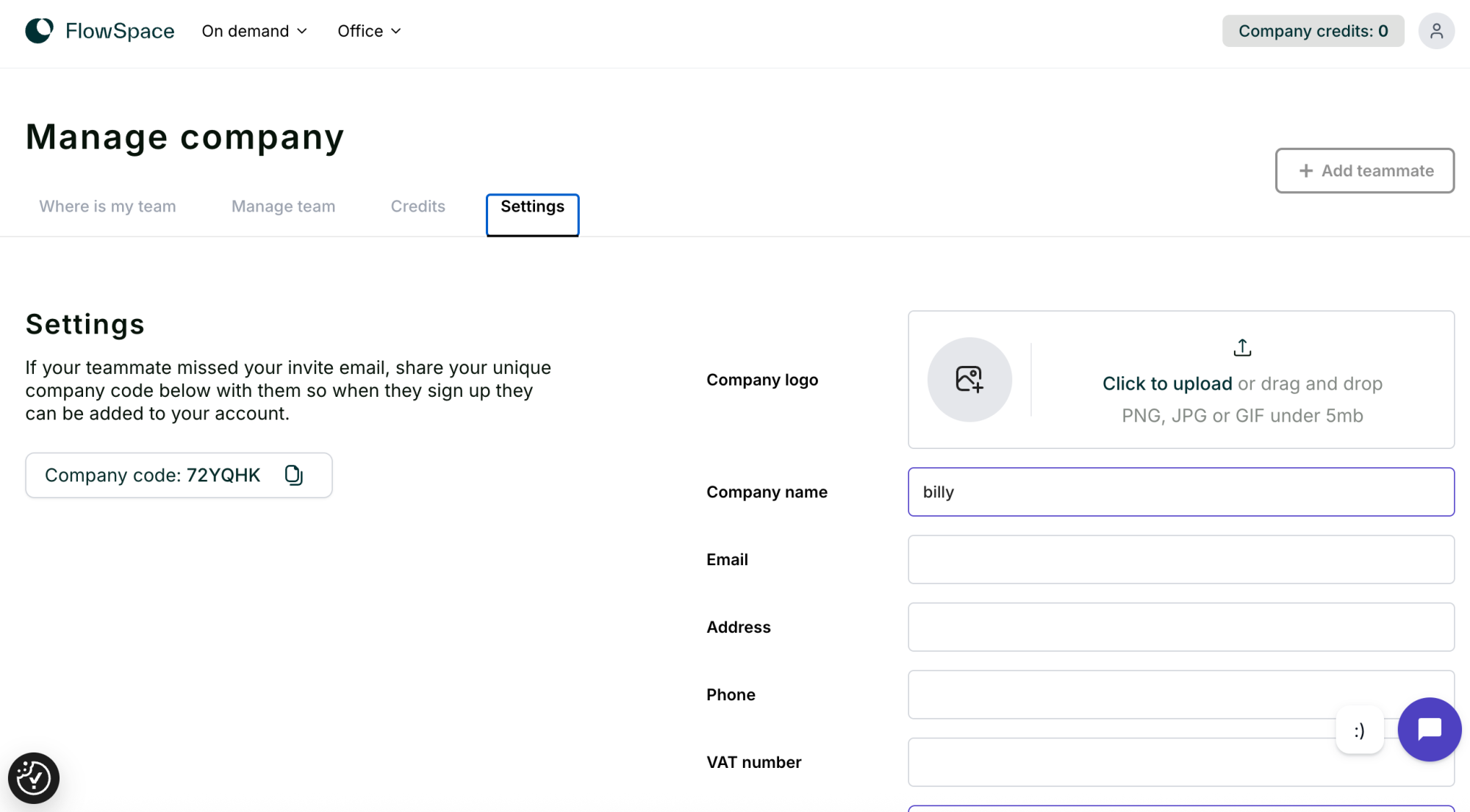
They're added to your company account automatically once sign-up is complete.
Need help?
- Invite not arrived? Ask your teammate to check spam, or share your company code instead (Option 2).
- Can't see Add teammate? Only Company Admins can invite. Ask your admin to add you or share the code.
Still stuck? Call us on 0333 880 9885, send us a WhatsApp, or use the chat button in the bottom right of any page.